

Context Menus
Create right-click context menus for your application
The Problem
Users expect right-click menus with context-specific actions. Different elements need different menus:
- Text: Cut, Copy, Paste
- Images: Save, Copy, Open
- Custom elements: Application-specific actions
Building context menus manually means handling mouse events, positioning, and platform differences.
The Wails Solution
Wails provides declarative context menus using CSS properties. Associate menus with HTML elements, pass data, and handle clicks—all with native platform behaviour.
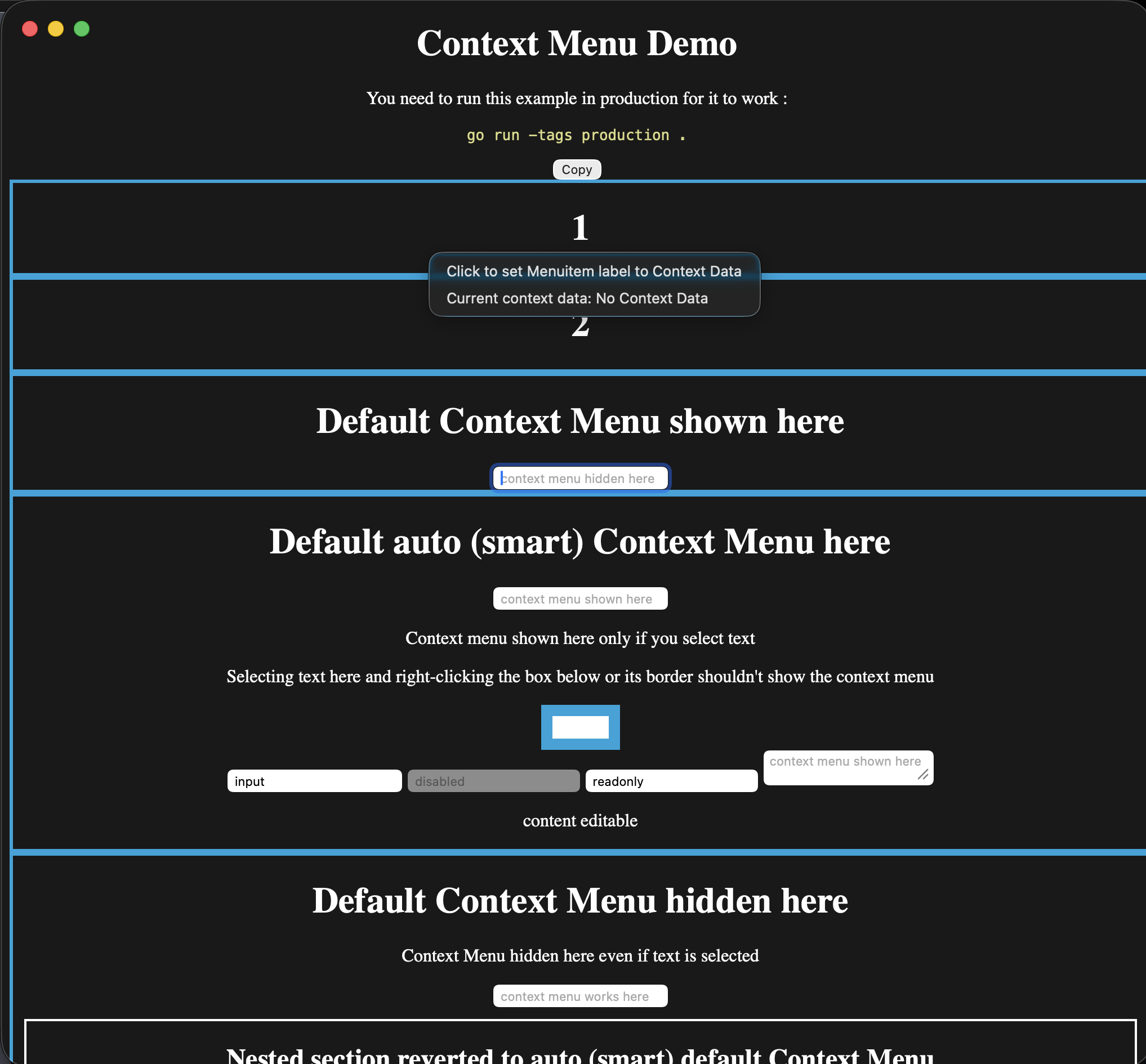
The menu is native to the platform while the element that opened it remains part of your webview. This macOS capture uses the example below’s custom context-menu registration.
Quick Start
Go code:
// Create context menu
contextMenu := app.ContextMenu.New()
contextMenu.Add("Cut").OnClick(handleCut)
contextMenu.Add("Copy").OnClick(handleCopy)
contextMenu.Add("Paste").OnClick(handlePaste)

// Register with ID
app.ContextMenu.Add("editor-menu", contextMenu)
HTML:
<textarea style="--custom-contextmenu: editor-menu">
    Right-click me!
</textarea>
That’s it! Right-clicking the textarea shows your custom menu.
Creating Context Menus
Basic Context Menu
// Create menu
contextMenu := app.ContextMenu.New()

// Add items
contextMenu.Add("Cut").SetAccelerator("CmdOrCtrl+X").OnClick(func(ctx *application.Context) {
    // Handle cut
})

contextMenu.Add("Copy").SetAccelerator("CmdOrCtrl+C").OnClick(func(ctx *application.Context) {
    // Handle copy
})

contextMenu.Add("Paste").SetAccelerator("CmdOrCtrl+V").OnClick(func(ctx *application.Context) {
    // Handle paste
})

// Register with unique ID
app.ContextMenu.Add("text-menu", contextMenu)
Menu ID: Must be unique. Used to associate menu with HTML elements.
With Submenus
contextMenu := app.ContextMenu.New()

// Add regular items
contextMenu.Add("Open").OnClick(handleOpen)
contextMenu.Add("Delete").OnClick(handleDelete)

contextMenu.AddSeparator()

// Add submenu
exportMenu := contextMenu.AddSubmenu("Export As")
exportMenu.Add("PNG").OnClick(exportPNG)
exportMenu.Add("JPEG").OnClick(exportJPEG)
exportMenu.Add("SVG").OnClick(exportSVG)

app.ContextMenu.Add("image-menu", contextMenu)
With Checkboxes and Radio Groups
contextMenu := app.ContextMenu.New()

// Checkbox
contextMenu.AddCheckbox("Show Grid", true).OnClick(func(ctx *application.Context) {
    showGrid := ctx.ClickedMenuItem().Checked()
    // Toggle grid
})

contextMenu.AddSeparator()

// Radio group
contextMenu.AddRadio("Small", false).OnClick(handleSize)
contextMenu.AddRadio("Medium", true).OnClick(handleSize)
contextMenu.AddRadio("Large", false).OnClick(handleSize)

app.ContextMenu.Add("view-menu", contextMenu)
For all menu item types, see Menu Reference.
Associating with HTML Elements
Use CSS custom properties to attach context menus:
Basic Association
<div style="--custom-contextmenu: menu-id">
    Right-click me!
</div>
CSS property: --custom-contextmenu: <menu-id>
With Context Data
Pass data from HTML to Go:
<div style="--custom-contextmenu: file-menu; --custom-contextmenu-data: file-123">
    Right-click this file
</div>
Go handler:
contextMenu := app.ContextMenu.New()
contextMenu.Add("Open").OnClick(func(ctx *application.Context) {
    fileID := ctx.ContextMenuData()  // "file-123"
    openFile(fileID)
})

app.ContextMenu.Add("file-menu", contextMenu)
CSS properties:
--custom-contextmenu: <menu-id>- Which menu to show--custom-contextmenu-data: <data>- Data to pass to handlers
Dynamic Data
Generate data dynamically in JavaScript:
<div id="file-item" style="--custom-contextmenu: file-menu">
    File.txt
</div>

<script>
// Set data dynamically
const fileItem = document.getElementById('file-item')
fileItem.style.setProperty('--custom-contextmenu-data', 'file-' + fileId)
</script>
Multiple Elements, Same Menu
<div class="file-item" style="--custom-contextmenu: file-menu; --custom-contextmenu-data: file-1">
    Document.pdf
</div>

<div class="file-item" style="--custom-contextmenu: file-menu; --custom-contextmenu-data: file-2">
    Image.png
</div>

<div class="file-item" style="--custom-contextmenu: file-menu; --custom-contextmenu-data: file-3">
    Video.mp4
</div>
One menu, different data for each element.
Context Data
Accessing Context Data
contextMenu.Add("Process").OnClick(func(ctx *application.Context) {
    data := ctx.ContextMenuData()  // Get data from HTML

    // Use the data
    processItem(data)
})
Data type: Always string. Parse as needed.
Passing Complex Data
Use JSON for complex data:
<div style="--custom-contextmenu: item-menu; --custom-contextmenu-data: {"id":123,"type":"image"}">
Image.png
</div>Go handler:
import "encoding/json"

type ItemData struct {
    ID   int    `json:"id"`
    Type string `json:"type"`
}

contextMenu.Add("Process").OnClick(func(ctx *application.Context) {
    dataStr := ctx.ContextMenuData()

    var data ItemData
    if err := json.Unmarshal([]byte(dataStr), &data); err != nil {
        log.Printf("Invalid data: %v", err)
        return
    }

    processItem(data.ID, data.Type)
})Validation Example
contextMenu.Add("Delete").OnClick(func(ctx *application.Context) {
    fileID := ctx.ContextMenuData()

    // Validate
    if !isValidFileID(fileID) {
        log.Printf("Invalid file ID: %s", fileID)
        return
    }

    // Check permissions
    if !canDeleteFile(fileID) {
        showError("Permission denied")
        return
    }

    // Safe to proceed
    deleteFile(fileID)
})
Default Context Menu
The WebView provides a built-in context menu for standard operations (copy, paste, inspect). Control it with --default-contextmenu:
Hide Default Menu
<div style="--default-contextmenu: hide">
    No default menu here
</div>
Use case: Custom UI elements where default menu doesn’t make sense.
Show Default Menu
<div style="--default-contextmenu: show">
    Default menu always shown
</div>
Use case: Text areas, input fields, editable content.
Auto (Smart) Mode
<div style="--default-contextmenu: auto">
    Smart context menu
</div>
Default behaviour. Shows default menu when:
- Text is selected
- In text input fields
- In editable content (
contenteditable)
Hides default menu otherwise.
Combining Custom and Default
<!-- Custom menu + default menu -->
<textarea style="--custom-contextmenu: editor-menu; --default-contextmenu: show">
    Both menus available
</textarea>
Behaviour:
- Custom menu shows first
- If custom menu is empty or not found, default menu shows
- Both can coexist (platform-dependent)
Dynamic Context Menus
Update menus based on application state:
Enable/Disable Items
var cutMenuItem *application.MenuItem
var copyMenuItem *application.MenuItem

func createContextMenu() {
    contextMenu := app.ContextMenu.New()

    cutMenuItem = contextMenu.Add("Cut")
    cutMenuItem.SetEnabled(false)  // Initially disabled
    cutMenuItem.OnClick(handleCut)

    copyMenuItem = contextMenu.Add("Copy")
    copyMenuItem.SetEnabled(false)
    copyMenuItem.OnClick(handleCopy)

    app.ContextMenu.Add("editor-menu", contextMenu)
}

func onSelectionChanged(hasSelection bool) {
    cutMenuItem.SetEnabled(hasSelection)
    copyMenuItem.SetEnabled(hasSelection)
    contextMenu.Update()  // Important!
}Change Labels
playMenuItem := contextMenu.Add("Play")

playMenuItem.OnClick(func(ctx *application.Context) {
    if isPlaying {
        playMenuItem.SetLabel("Pause")
    } else {
        playMenuItem.SetLabel("Play")
    }
    contextMenu.Update()
})
Rebuild Menus
For major changes, rebuild the entire menu:
func rebuildContextMenu(fileType string) {
    contextMenu := app.ContextMenu.New()

    // Common items
    contextMenu.Add("Open").OnClick(handleOpen)
    contextMenu.Add("Delete").OnClick(handleDelete)

    contextMenu.AddSeparator()

    // Type-specific items
    switch fileType {
    case "image":
        contextMenu.Add("Edit Image").OnClick(editImage)
        contextMenu.Add("Set as Wallpaper").OnClick(setWallpaper)
    case "video":
        contextMenu.Add("Play").OnClick(playVideo)
        contextMenu.Add("Extract Audio").OnClick(extractAudio)
    case "document":
        contextMenu.Add("Print").OnClick(printDocument)
        contextMenu.Add("Export PDF").OnClick(exportPDF)
    }

    app.ContextMenu.Add("file-menu", contextMenu)
}
Platform Behaviour
Context menus are platform-native:
Native macOS context menus:
- System animations and transitions
- Right-click = Control+Click (automatic)
- Adapts to system appearance (light/dark)
- Standard text operations in default menu
- Native scrolling for long menus
macOS conventions:
- Use sentence case for menu items
- Use ellipsis (…) for items that open dialogs
- Common shortcuts: ⌘C (Copy), ⌘V (Paste)
Native Windows context menus:
- Windows native style
- Follows Windows theme
- Standard Windows operations in default menu
- Touch and pen input support
Windows conventions:
- Use title case for menu items
- Use ellipsis (…) for items that open dialogs
- Common shortcuts: Ctrl+C (Copy), Ctrl+V (Paste)
Desktop environment integration:
- Adapts to desktop theme (GTK, Qt, etc.)
- Right-click behaviour follows system settings
- Default menu content varies by environment
- Positioning follows DE conventions
Linux considerations:
- Test on target desktop environments
- GTK and Qt have different behaviours
- Some DEs customise context menus
Complete Example
Go code:
package main

import (
    "encoding/json"
    "log"
    "github.com/wailsapp/wails/v3/pkg/application"
)

type FileData struct {
    ID   string `json:"id"`
    Type string `json:"type"`
    Name string `json:"name"`
}

func main() {
    app := application.New(application.Options{
        Name: "Context Menu Demo",
    })

    // Create file context menu
    fileMenu := createFileMenu(app)
    app.ContextMenu.Add("file-menu", fileMenu)

    // Create image context menu
    imageMenu := createImageMenu(app)
    app.ContextMenu.Add("image-menu", imageMenu)

    // Create text context menu
    textMenu := createTextMenu(app)
    app.ContextMenu.Add("text-menu", textMenu)

    app.Window.New()
    app.Run()
}

func createFileMenu(app *application.App) *application.ContextMenu {
    menu := app.ContextMenu.New()

    menu.Add("Open").OnClick(func(ctx *application.Context) {
        data := parseFileData(ctx.ContextMenuData())
        openFile(data.ID)
    })

    menu.Add("Rename").OnClick(func(ctx *application.Context) {
        data := parseFileData(ctx.ContextMenuData())
        renameFile(data.ID)
    })

    menu.AddSeparator()

    menu.Add("Delete").OnClick(func(ctx *application.Context) {
        data := parseFileData(ctx.ContextMenuData())
        deleteFile(data.ID)
    })

    return menu
}

func createImageMenu(app *application.App) *application.ContextMenu {
    menu := app.ContextMenu.New()

    menu.Add("View").OnClick(func(ctx *application.Context) {
        data := parseFileData(ctx.ContextMenuData())
        viewImage(data.ID)
    })

    menu.Add("Edit").OnClick(func(ctx *application.Context) {
        data := parseFileData(ctx.ContextMenuData())
        editImage(data.ID)
    })

    menu.AddSeparator()

    exportMenu := menu.AddSubmenu("Export As")
    exportMenu.Add("PNG").OnClick(exportPNG)
    exportMenu.Add("JPEG").OnClick(exportJPEG)
    exportMenu.Add("WebP").OnClick(exportWebP)

    return menu
}

func createTextMenu(app *application.App) *application.ContextMenu {
    menu := app.ContextMenu.New()

    menu.Add("Cut").SetAccelerator("CmdOrCtrl+X").OnClick(handleCut)
    menu.Add("Copy").SetAccelerator("CmdOrCtrl+C").OnClick(handleCopy)
    menu.Add("Paste").SetAccelerator("CmdOrCtrl+V").OnClick(handlePaste)

    return menu
}

func parseFileData(dataStr string) FileData {
    var data FileData
    if err := json.Unmarshal([]byte(dataStr), &data); err != nil {
        log.Printf("Invalid file data: %v", err)
    }
    return data
}

// Handler implementations...
func openFile(id string) { /* ... */ }
func renameFile(id string) { /* ... */ }
func deleteFile(id string) { /* ... */ }
func viewImage(id string) { /* ... */ }
func editImage(id string) { /* ... */ }
func exportPNG(ctx *application.Context) { /* ... */ }
func exportJPEG(ctx *application.Context) { /* ... */ }
func exportWebP(ctx *application.Context) { /* ... */ }
func handleCut(ctx *application.Context) { /* ... */ }
func handleCopy(ctx *application.Context) { /* ... */ }
func handlePaste(ctx *application.Context) { /* ... */ }
HTML:
<!DOCTYPE html>
<html>
<head>
<style>
.file-item {
padding: 10px;
margin: 5px;
border: 1px solid #ccc;
cursor: pointer;
}
.file-item:hover {
background: #f0f0f0;
}
textarea {
width: 100%;
height: 200px;
}
</style>
</head>
<body>
<h2>Files</h2>
<!-- Regular file -->
<div class="file-item"
style="--custom-contextmenu: file-menu;
--custom-contextmenu-data: {"id":"file-1","type":"document","name":"Report.pdf"}">
📄 Report.pdf
</div>
<!-- Image file -->
<div class="file-item"
style="--custom-contextmenu: image-menu;
--custom-contextmenu-data: {"id":"file-2","type":"image","name":"Photo.jpg"}">
🖼️ Photo.jpg
</div>
<h2>Text Editor</h2>
<!-- Text area with custom menu + default menu -->
<textarea
style="--custom-contextmenu: text-menu; --default-contextmenu: show"
placeholder="Type here, then right-click...">
</textarea>
<h2>No Context Menu</h2>
<!-- Disable default menu -->
<div style="--default-contextmenu: hide; padding: 20px; border: 1px solid #ccc;">
Right-click here - no menu appears
</div>
</body>
</html>Best Practices
✅ Do
- Keep menus focused - Only relevant actions for the element
- Validate context data - Treat as untrusted input
- Use clear labels - “Delete File” not “Delete”
- Call menu.Update() - After changing menu state
- Test on all platforms - Behaviour varies
- Provide keyboard shortcuts - For common actions
- Group related items - Use separators
❌ Don’t
- Don’t trust context data - Always validate
- Don’t make menus too long - 7-10 items maximum
- Don’t forget menu.Update() - Menus won’t work properly
- Don’t nest too deeply - 2 levels maximum
- Don’t use jargon - Keep labels user-friendly
- Don’t block handlers - Keep them fast
Troubleshooting
Context Menu Not Appearing
Possible causes:
- Menu ID mismatch
- CSS property typo
- Runtime not initialised
Solution:
// Check menu is registered
app.ContextMenu.Add("my-menu", contextMenu)<!-- Check ID matches -->
<div style="--custom-contextmenu: my-menu">Context Data Not Received
Possible causes:
- CSS property not set
- Data contains special characters
Solution:
<!-- Escape quotes in JSON -->
<div style="--custom-contextmenu-data: {"id":123}">Or use JavaScript:
element.style.setProperty('--custom-contextmenu-data', JSON.stringify(data))Menu Items Not Responding
Cause: Forgot to call menu.Update() after enabling
Solution:
menuItem.SetEnabled(true)
contextMenu.Update()  // Add this!
Next Steps
Complete reference for menu item types and properties.
Create application menu bars.
Add system tray/menu bar integration.
Common menu patterns and best practices.
Questions? Ask in Discord or check the context menu example.